DataTables
Once you have compiled a Data Structure, you can use it as a blueprint to create a DataTable.
A DataTable is the actual spreadsheet where you input your game’s data. Under the hood, it is saved as a native Godot Resource (.tres), meaning it integrates flawlessly with the engine’s Resource Loader and caches efficiently in memory.
Table of contents
The Spreadsheet Workspace
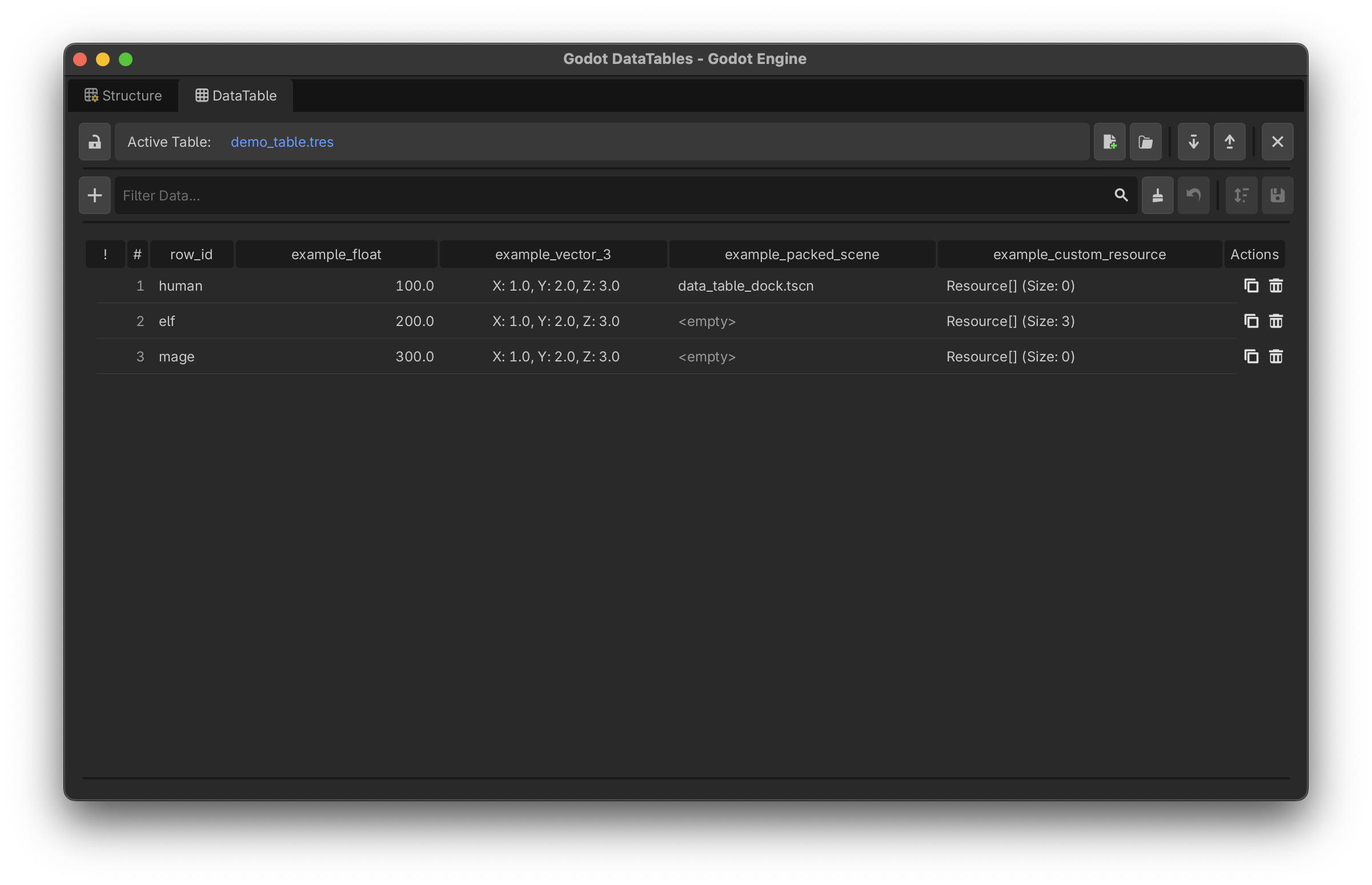
Switch to the DataTable tab in the bottom editor panel. When you create a new table, the addon will ask you where to save the .tres file, and then ask you to select the .gd Data Structure script you want to use as its template.
Inline Editing
The grid is fully interactive. Depending on the data type you assigned in your schema, the cell will adapt:
- Booleans become clickable checkboxes.
- Enums become native drop-down lists.
- Colors & Vectors open specialized pop-up configurators when double-clicked.
- Objects/Resources open Godot’s Quick Search menu when double-clicked, automatically filtered to only show valid resources (e.g., it will only let you pick a
Texture2Dif the column requires an image).
Array Editor
If a column is an Array, double-clicking the cell will open the dedicated Array Editor Popup. This allows you to add, remove, edit, and drag-and-drop elements inside the array while maintaining strict type safety.
Toolbar Breakdown
| Name | Function |
|---|---|
| New Table | Prompts for a save path and schema, then creates a blank .tres database. |
| Load Table | Opens the Quick Picker to load an existing .tres DataTable. |
| Import | Imports data from external CSV or JSON files. (See Import/Export page). |
| Export | Exports the current table to CSV or JSON. |
| Add Row | Injects a new, uniquely-named row into the table. |
| Clear | Wipes all rows from the active table. |
| Close | Closes the workspace. |
| Revert | Discards unsaved edits and reloads the table from disk. |
| Lock/Unlock | Toggles workspace protection to prevent accidental edits. |
| Save | Writes the current table data to the .tres file on disk. |
| Save Sorting | Permanently overwrites the internal array index order to match your current visual sorting. |
Workflow Features
- Unsaved Changes: Modified rows glow with an orange warning indicator until you click Save.
- Filtering & Sorting: Use the search bar to instantly filter rows by ID or contents. Click any column header to sort A-Z or Z-A.
- Drag and Drop: You can drag rows by their
#index to manually reorder them, or drag Resource files directly from your FileSystem dock into Object cells.