Data Structures
Before you can populate a table with data, you need a blueprint. In Godot DataTables, this is called a Data Structure.
The Data Structure workspace allows you to visually define the columns (properties) of your dataset. When you are finished, the addon compiles your visual layout into a highly optimized, strongly-typed GDScript (.gd) class.
Table of contents
The Structure Workspace
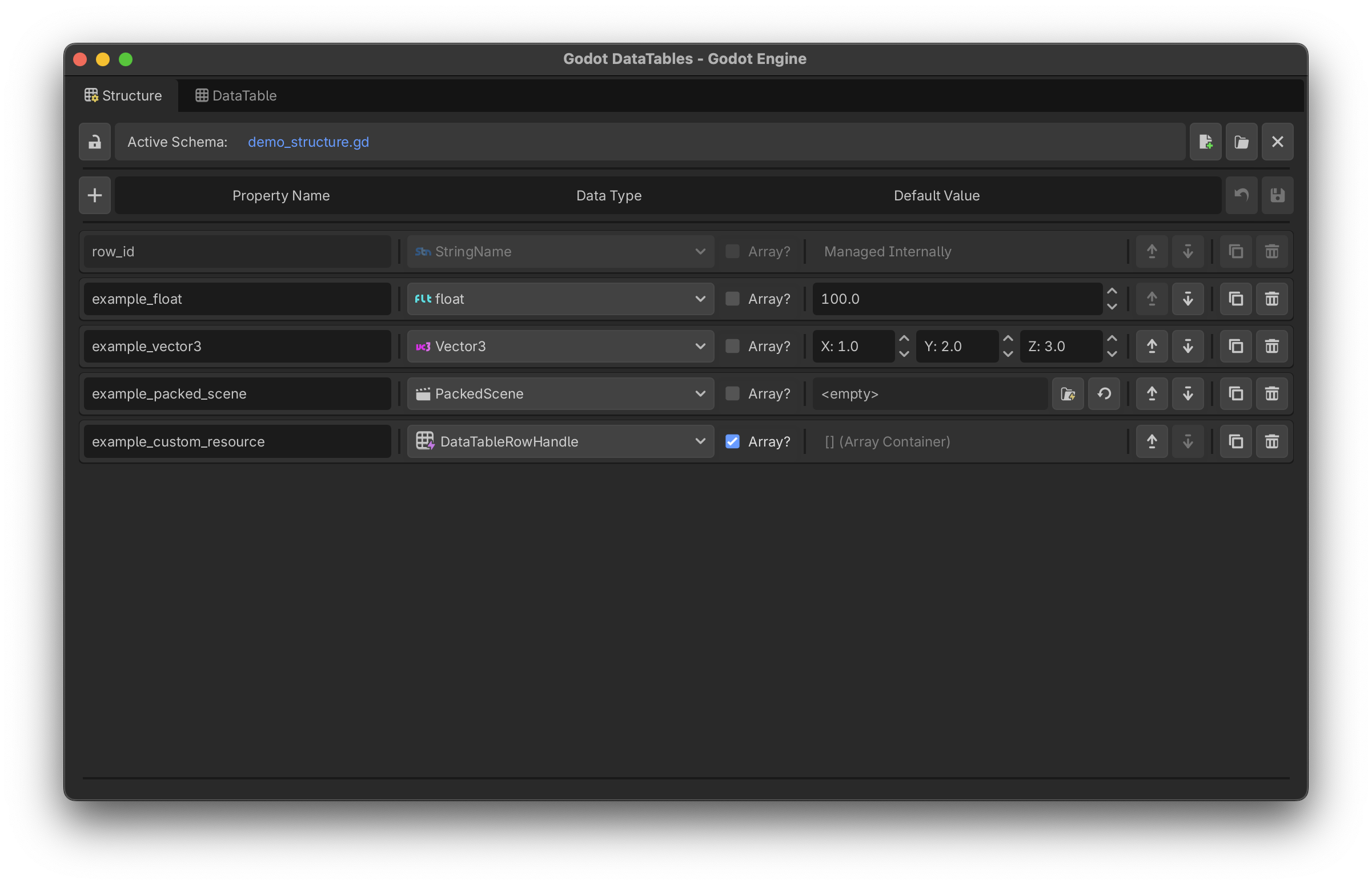
To access the workspace, click the Data Structure tab in the bottom editor panel. Every schema begins with a permanent, unmodifiable row_id property, which acts as the unique identifier (Primary Key) for your rows.
Supported Data Types
Unlike generic CSV workflows, Godot DataTables natively supports the engine’s strict typing system. You can define fields using:
- Primitives:
int,float,bool,String,StringName. - Math & Visual:
Vector2,Vector3,Color. - Native Resources:
Texture2D,PackedScene, or even your own Custom Resources. - Enums: Define a comma-separated list of strings. The tool will automatically generate a native GDScript
@export_enumfor you. - Arrays: Simply check the Array? box next to any type to instantly turn that field into a strictly-typed Godot Array (e.g.,
Array[float],Array[Texture2D]).
Toolbar Breakdown
The top toolbar gives you full control over your schema’s lifecycle and safety:
| Name | Function |
|---|---|
| New Schema | Creates a new .gd schema file and opens a blank workspace. |
| Load Schema | Opens the Godot Quick Picker to load an existing schema script for editing. |
| Close | Closes the workspace. Prompts you to save if there are uncompiled changes. |
| Revert | Discards all current visual edits and reloads the last compiled state from disk. |
| Lock/Unlock | Toggles workspace protection to prevent accidental edits. |
| Add Field | Adds a new property card to the bottom of the schema. |
| Compile & Save | Generates the strongly-typed GDScript file and saves it to your project folder. |
Modifying Properties
Each property is represented as a “Card”.
- Use the Up/Down Arrows to reorganize column order.
- Use the Duplicate button to copy a complex field.
- Use the Remove button to delete a field.
- Real-time Validation: If you type an invalid GDScript variable name (e.g., starting with a number, or containing spaces) or a duplicate name, the tool will instantly warn you and revert the change.